728x90

<!DOCTYPE html>
<html lang="en">
<head>
<meta charset="UTF-8">
<meta name="viewport" content="width=device-width, initial-scale=1.0">
<title>Document</title>
<style>
div {
width: 500px;
height: 300px;
margin: 20px;
border: solid 1px;
}
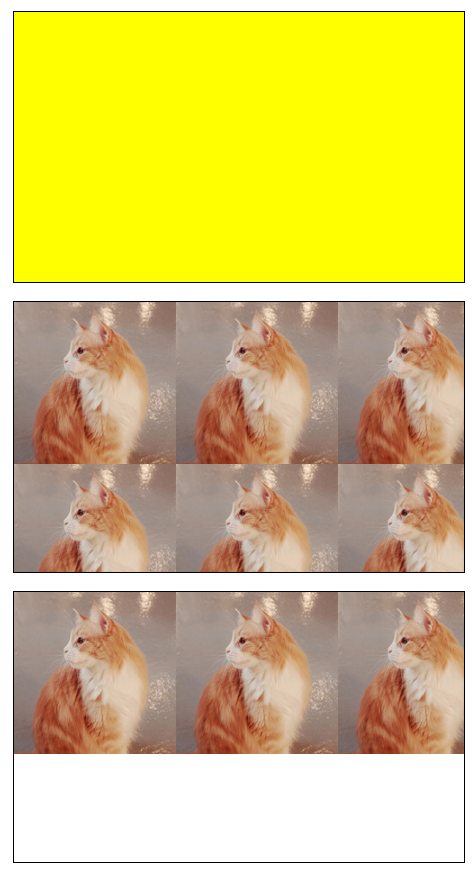
.img_div {
background-image: url('https://i.ibb.co/3493r17/cat.jpg');

}
#div1 {
background-color: yellow;
}
#div3 {
background-repeat: repeat-x;
}
#div4 {
background-repeat: repeat-y;
}
#div5 {
background-repeat: no-repeat;
}
#div6 {
background-repeat: no-repeat;
background-position: top right;
}
#div7 {
background-repeat: no-repeat;
background-size: 100px 100px; /* 하나는 너비, 하나는 높이이다 */
}
</style>
</head>
<body>
<div id="div1"></div>
<div id="div2" class="img_div"></div>
<div id="div3" class="img_div"></div>
<div id="div4" class="img_div"></div>
<div id="div5" class="img_div"></div>
<div id="div6" class="img_div"></div>
<div id="div7" class="img_div"></div>
</body>
</html>


- 배치라는 것은 특정 요소를 화면에 어디에 위치시킬 것인지 정하는 것이다.
- 배치 position 에는 4가지가 있다.
- 우선 위의 그림에서 absoulte 에 대한 설명이 틀렸는데, 정확히 말하면 body 가 아니라 부모이다.
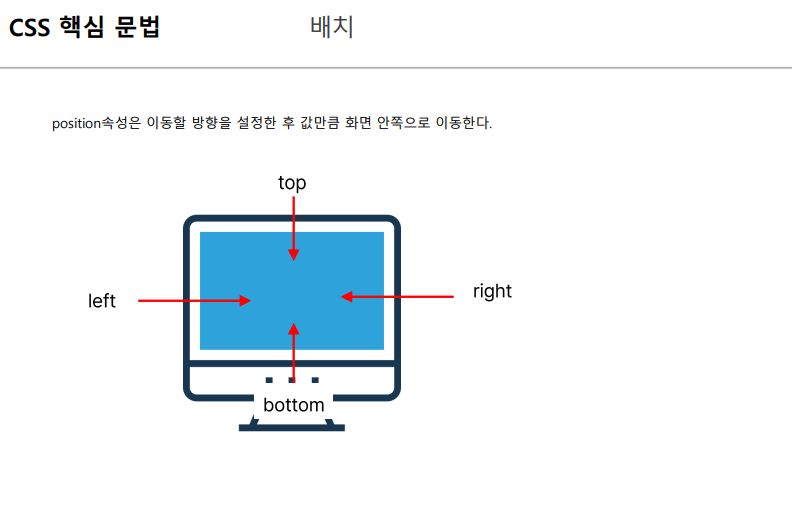
- 배치를 할 때는 내가 어느 방향으로 이 요소를 움직일 것인지 정한 다음 얼마만큼 이동할 것인지 정한다.
- 해당 방향의 안쪽으로 요소가 이동하게 된다.
- 예제를 통해서 좀 더 알아보도록 하자.

<!DOCTYPE html>
<html lang="en">
<head>
<meta charset="UTF-8">
<meta name="viewport" content="width=device-width, initial-scale=1.0">
<title>Document</title>
<style>
* {
margin: 0;
padding: 0;
}
p {
border: solid 1px;
width: 300px;
height: 100px;
}
.child1 {
background-color: lavender;
}
.child2 {
background-color: darkgray;
}
.child3 {
background-color: gold;
}
</style>
</head>
<body>
<div class="parent">
<p class="child1">child1</p>
<p class="child2">child2</p>
<p class="child3">child3</p>
</div>
</body>
</html>

- position 의 default 값은 static 이다.
static 상태에서는 요소가 추가될 때마다 위에서 아래로 차곡 차곡 쌓여가는 것을 볼 수 있다.
<!DOCTYPE html>
<html lang="en">
<head>
<meta charset="UTF-8">
<meta name="viewport" content="width=device-width, initial-scale=1.0">
<title>Document</title>
<style>
* {
margin: 0;
padding: 0;
}
p {
border: solid 1px;
width: 300px;
height: 100px;
}
.child1 {
background-color: lavender;
}
.child2 {
background-color: darkgray;
position: relative;
right: 50px;
top: 50px;
}
.child3 {
background-color: gold;
}
</style>
</head>
<body>
<div class="parent">
<p class="child1">child1</p>
<p class="child2">child2</p>
<p class="child3">child3</p>
</div>
</body>
</html>

- position: relative 는 원래 요소가 있었어야 하는 위치를 기준으로 요소가 이동하게 된다.
우리의 경우 right, top 에 값을 주어 요소를 움직였다.
여기서 재밌는 점은 right 과 top 에 - 값을 줄 수 있다는 것이다.
<!DOCTYPE html>
<html lang="en">
<head>
<meta charset="UTF-8">
<meta name="viewport" content="width=device-width, initial-scale=1.0">
<title>Document</title>
<style>
* {
margin: 0;
padding: 0;
}
p {
border: solid 1px;
width: 300px;
height: 100px;
}
.child1 {
background-color: lavender;
}
.child2 {
background-color: darkgray;
position: absolute;
right: -50px;
top: 50px;
}
.child3 {
background-color: gold;
}
</style>
</head>
<body>
<div class="parent">
<p class="child1">child1</p>
<p class="child2">child2</p>
<p class="child3">child3</p>
</div>
</body>
</html>

- absolute 는 부모를 기준으로 요소를 이동시킨다.
재밌는 점은 relative 와는 다르게 요소 자체가 아예 별도의 존재가 된다. 무슨 말이냐면 child3 는 child2 가 비운 자리를 자연스럽게 올라가서 채웠다는 것이다.
<!DOCTYPE html>
<html lang="en">
<head>
<meta charset="UTF-8">
<meta name="viewport" content="width=device-width, initial-scale=1.0">
<title>Document</title>
<style>
* {
margin: 0;
padding: 0;
}
p {
border: solid 1px;
width: 300px;
height: 100px;
}
body {
height: 3000px;
}
.child1 {
background-color: lavender;
}
.child2 {
background-color: darkgray;
position: fixed;
right: 50px;
top: 50px;
}
.child3 {
background-color: gold;
}
</style>
</head>
<body>
<div class="parent">
<p class="child1">child1</p>
<p class="child2">child2</p>
<p class="child3">child3</p>
</div>
</body>
</html>
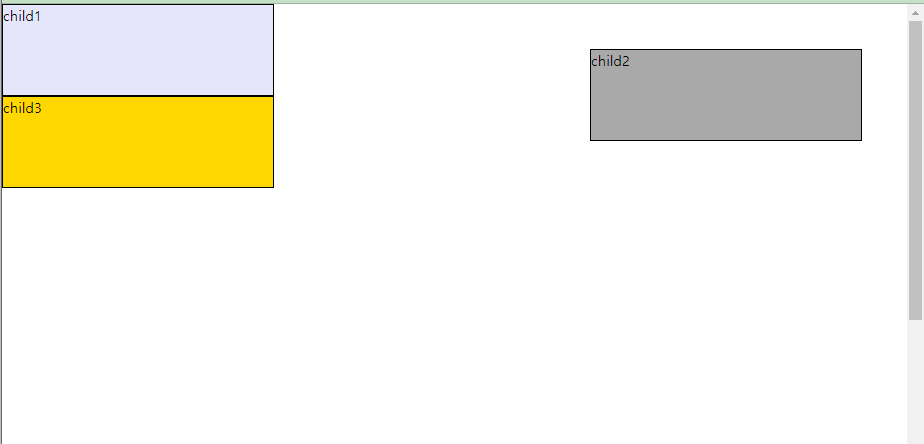
- position: fixed 를 사용하면 absolute 와 동일하게 부모를 기준으로 요소를 이동시킨다.
다른 점이라면, 스크롤 바가 이동을 해도 요소가 따라간다는 점이다.


- flex 를 사용하기 위해서는 container 와 item 을 이해해야 한다.
- container 는 요소들의 묶음을 의미하고, item 은 요소를 의미한다.
- flex-direction 을 사용하면 주축을 바꿀 수 있다. (축에는 main axis 와 cross axis 로 구성되어있다)
<!DOCTYPE html>
<html lang="en">
<head>
<meta charset="UTF-8">
<meta name="viewport" content="width=device-width, initial-scale=1.0">
<title>Document</title>
<style>
* {
margin: 0;
}
div {
margin-top: 20px;
}
p {
border: solid 1px;
width: 300px;
height: 100px;
}
.child1 {
background-color: lavender;
}
.child2 {
background-color: darkgray;
}
.child3 {
background-color: gold;
}
.parent {
display: flex;
}
#parent1 {
flex-direction: row;
}
#parent2 {
flex-direction: column;
}
#paren3 {
flex-wrap: wrap; /* 자손들의 가로길이가 부모보다 커지면 줄바꿈 */
}
#parent4 {
border: 3px solid red;
justify-content: center;
}
</style>
</head>
<body>
<h1>flex로 자식요소들 정렬하기</h1>
<div class="parent" id="parent1">
<p class="child1">child1</p>
<p class="child2">child2</p>
<p class="child3">child3</p>
</div>
<div class="parent" id="parent2">
<p class="child1">child1</p>
<p class="child2">child2</p>
<p class="child3">child3</p>
</div>
<div class="parent" id="parent3">
<p class="child1">child1</p>
<p class="child2">child2</p>
<p class="child3">child3</p>
<p class="child1">child1</p>
<p class="child2">child2</p>
<p class="child3">child3</p>
</div>
<div class="parent" id="parent4">
<p class="child1">child1</p>
<p class="child2">child2</p>
<p class="child3">child3</p>
</div>
</body>
</html>

- 구글에 flex 를 검색해보면 정말 엄청난 퀄리티의 포스팅을 올려주신 분이 계신다.
추가적인 내용이 필요하신분은 아래를 참고하세요.
https://studiomeal.com/archives/197
이번에야말로 CSS Flex를 익혀보자
이 튜토리얼은 “차세대 CSS 레이아웃” 시리즈의 첫번째 포스트입니다. 이번에야말로 CSS Flex를 익혀보자 이번에야말로 CSS Grid를 익혀보자 벌써부터 스크롤의 압박이 느껴지고,‘좀 편안하게 누
studiomeal.com
'[그린컴퓨터] 클라이언트 > CSS' 카테고리의 다른 글
| CSS 핵심 문법 { font, line, color, text, letter, word } (0) | 2023.06.27 |
|---|---|
| CSS 핵심 문법 { display, opacity } (0) | 2023.06.27 |
| CSS 핵심 문법 { box-sizing, overflow } (0) | 2023.06.27 |
| CSS 핵심 문법 { border 테두리 } (0) | 2023.06.27 |
| CSS 핵심 문법 { CSS 단위, 박스모델, 여백 } (0) | 2023.06.27 |